Payments
How to check recent Stripe payments on your Mac
See the amount and time of recent Stripe payments from the Mac menu bar, then open any payment in your Stripe Dashboard.
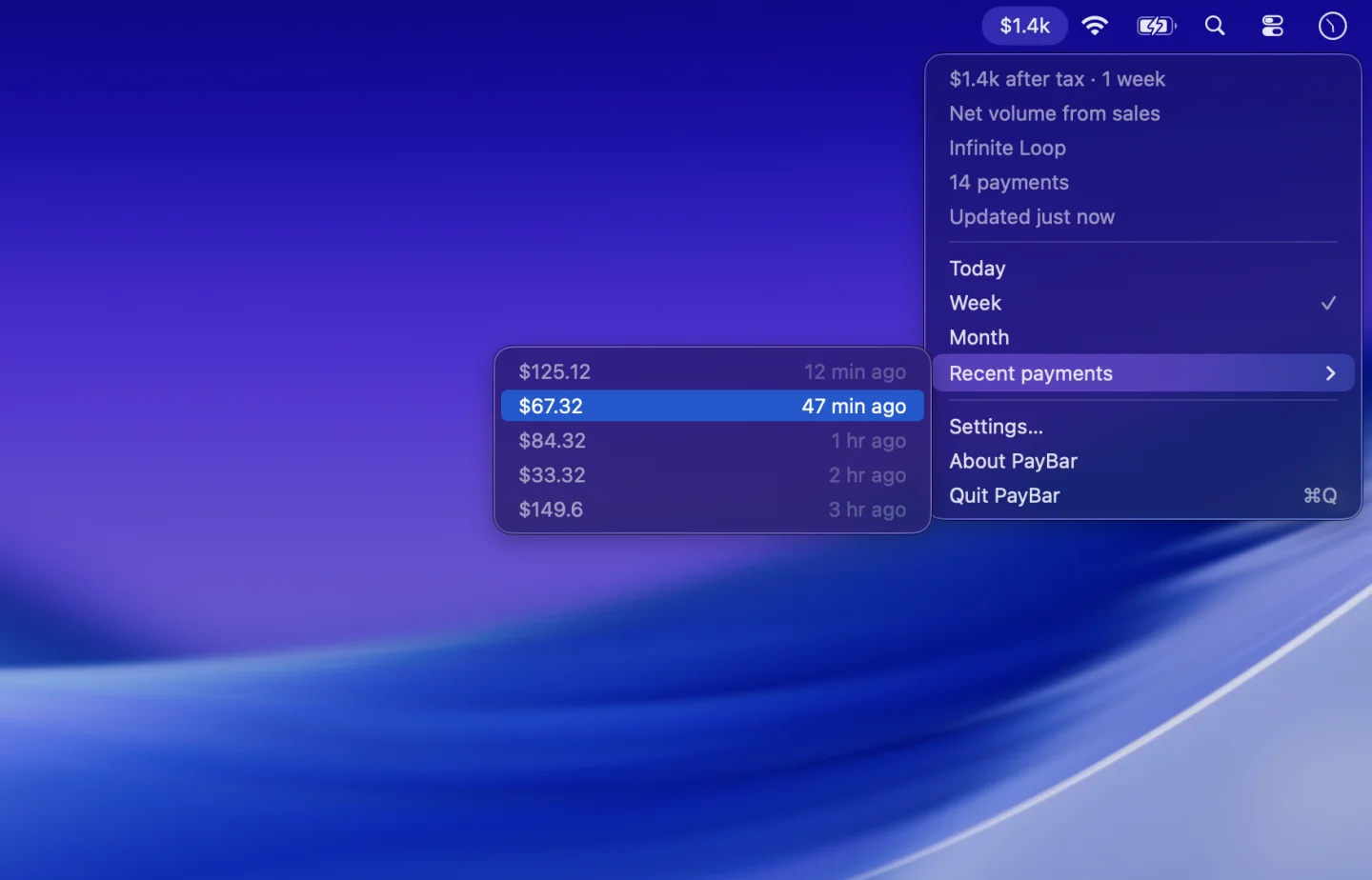
Find Recent payments in your menu bar
- Click the PayBar amount at the top of your screen.
- Open Recent payments. Each row shows the amount and how long ago it came in.
- Click a payment to open its details in your Stripe Dashboard. You may need to sign in or switch to the matching Stripe account.
PayBar starts with the amount net of Stripe fees. If currency conversion or the tax estimate is on, the menu reflects those settings.
Scroll down in Recent payments to load older entries. Use the Stripe Dashboard when you need to search by customer, see the full payment history, or take a payment action.
Check the account and date range
If a payment is missing, check which account and date range PayBar is showing. Use Today, Week or Month in the menu for a quick change. You can also choose a longer range in Settings → General.
PayBar gets live and test data from different Stripe keys. Use the live account to see real payments. For read-only access, follow the restricted Stripe key setup guide.
Keep the total in view
The menu bar can show a total while the payments submenu shows individual amounts. Choose Gross volume for sales volume or Net volume from sales to see the net effect on your Stripe balance. Use the guide to tracking Stripe revenue in the menu bar to set the number you want to see.
PayBar on your Mac
A 24-hour free trial will be available when online checkout opens.
Launch details