Getting started
Is there a Stripe app for Mac?
Find out how to use Stripe on a Mac and how a native Stripe menu bar app can keep revenue, recent payments, or MRR in view.
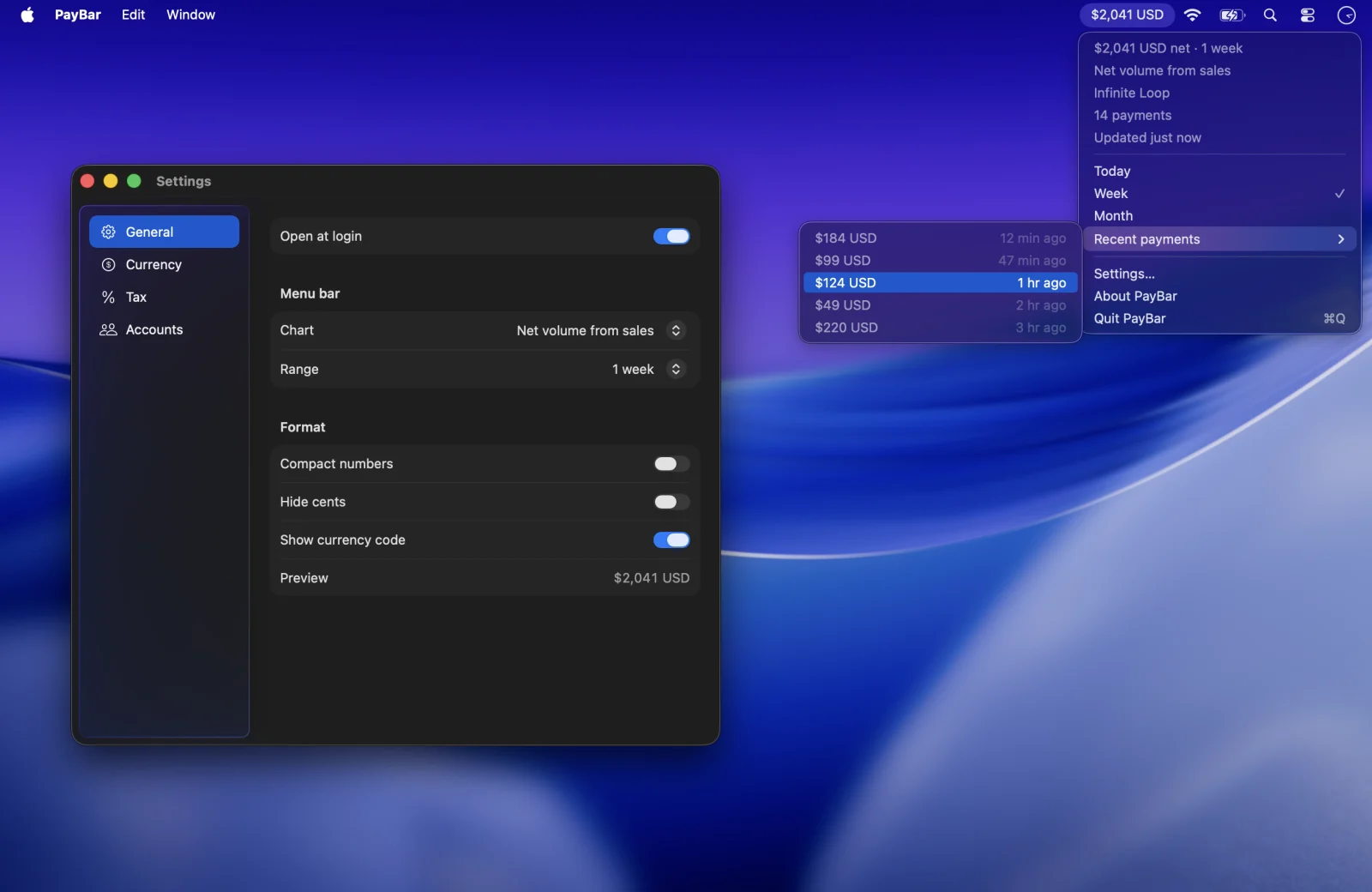
If you want to check Stripe revenue from a Mac without repeatedly opening a browser, you have a few choices. Stripe provides its official web dashboard and mobile app. PayBar is a separate native macOS application built by Jasper Studios for keeping important Stripe metrics in the menu bar.
Can I download an official Stripe app for Mac?
The Stripe Dashboard is Stripe’s official way to manage your Stripe account on desktop. It runs in a supported browser such as Safari or Chrome and includes payments, balances, reporting, customer records and account administration.
Stripe also publishes an official mobile Dashboard app for iPhone and Android. According to Stripe’s mobile app support page, the iPhone app can be used on compatible Apple silicon Macs, but it is not optimised for macOS. Some mobile-only features are unavailable there.
Check the requirements of the Stripe app itself before downloading. A desktop browser is still the most complete option for handling your Stripe business on a Mac. See Stripe’s web Dashboard guide.
A native Stripe menu bar app for Mac
PayBar is for a different job: monitoring key Stripe figures while using other software. Select one of 19 metrics, from today’s net volume to recurring revenue or available balance, and keep it visible in the macOS menu bar.
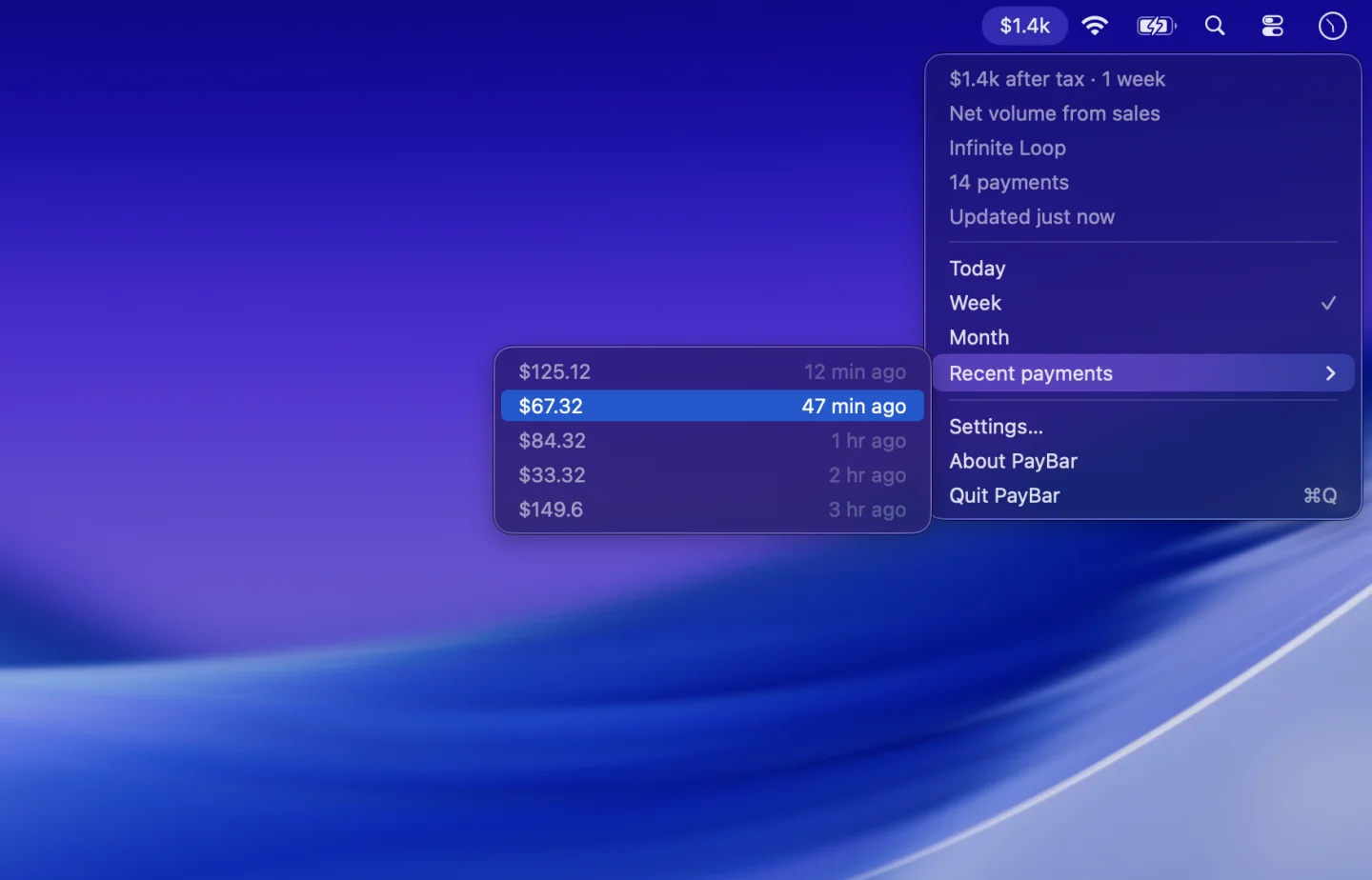
You can pick a date range, view recent payments, switch Stripe businesses and open a payment’s original Stripe Dashboard page. PayBar does not replace the Dashboard’s controls for accepting payments, issuing refunds or initiating payouts.
Which way should I use Stripe on my Mac?
- Choose Stripe Dashboard in a browser when you need to investigate payment details, change a subscription, export a report or manage an account.
- Choose Stripe’s iPhone app if you also need the mobile experience and its supported functionality.
- Choose PayBar if you want a persistent, glanceable number on your Mac rather than a full dashboard. It's particularly useful for monitoring recurring revenue or daily sales throughout the workday.
For other independent monitoring apps, see our comparison of Stripe revenue tracking apps for Mac.
How to get Stripe revenue in the Mac menu bar
- Check PayBar availability, then download and install it when available on your supported Mac.
- Open the app’s Accounts settings and add a restricted Stripe API key with read-only access. Follow the setup guide so that you grant only the required permissions.
- Under General, choose the metric and time period you want to display.
Read the complete Stripe menu bar guide, including all 19 metrics, for a walkthrough. PayBar is an independent product, not an official Stripe application.
PayBar on your Mac
A 24-hour free trial will be available when online checkout opens.
Launch details